
Payrun Wizard
There are two methods of accessing the Payrun Wizard:
From the ribbon bar click on the drop down on the Payrun icon and click on the Payrun Wizard node.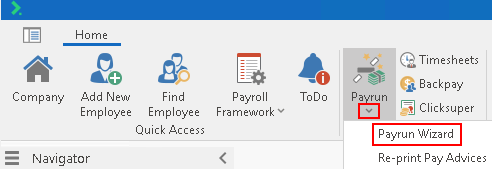
or
In the Navigator select Payroll Processes and click on the Payrun Wizard node.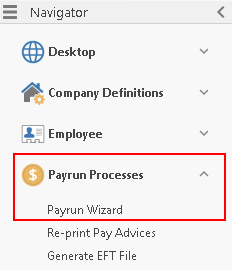
The Payrun Wizard has a number of steps, some of which will be undertaken in a specific order, and others that will only be displayed under certain circumstances.
This is a list of screens that will/may be displayed when you progress through the Payrun Wizard.
Some of these can also be accessed directly via options on the Payroll | Payrun menu.
For Example: Re-print Pay Advices, Generate EFT File & Payrun Reports.
These screens are listed here in a typical order of appearance:
For opening new payruns, or editing/closing/aborting/reversing existing payruns
Enter details about the payrun you're working on, including dates
For importing timesheets, leave requests, and so on
Adding Employees to the Payrun
This step is part of the Payrun process.
Only displayed if you have processed an employee with a 'stop' message
This is only displayed if the Payrun Recalculation option is active
A mandatory step which performs several functions within the database
To generate a file containing all EFT transactions from the current payrun
For printing hardcopy payslips for relevant employees
For emailing payslips to relevant employees
For printing reports from the Updated payrun
The Final step of the Payrun Wizard for submitting the payrun figures to the ATO